Set up BYO modems on Opticomm FTTH
Here’s how you can set up a compatible bring-your-own (BYO) modem for iiNet FTTH on the Opticomm or RedTrain network.
Your Netphone service and included calls are not available if you use a BYO modem.
Select one of the links below to jump to a query:
Modem compatibility
To work on iiNet FTTH, your modem must support the following:
- PPPoE connections by Ethernet WAN
- IPoE connections by Ethernet WAN (for select locations on the RedTrain network)
Not sure if your FTTH service is on the Opticomm or RedTrain network? Call us on 13 22 58 and we'll help you.
General FTTH setup guide for any modem
All modems are different. If this advice doesn’t work for your modem, check the manufacturer’s website for a guide on how to plug in and enter the iiNet settings.
- Find your FTTH Connection Box – this is usually installed on the inside of an exterior wall in your home, sometimes in the garage.
- Unplug any old modem from the Connection Box and power outlet.
- Use an Ethernet cable to connect your modem's WAN or LAN/WAN port to your Connection Box. If your Connection Box has a set of 4 Ethernet ports, always use port number 1 (unless you requested a specific port in your order).
Ethernet ports may also be labelled as Data, GE or LAN. - Use the power cable to connect your modem's Power port to a power outlet, then turn it on.
If your modem has a power button or switch, turn it on.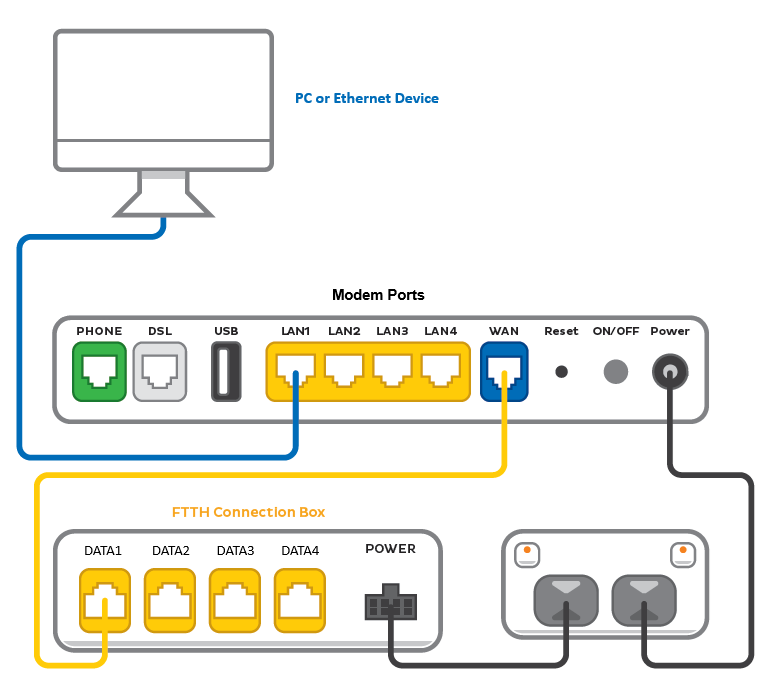
- Connect a device to your modem. You can use an Ethernet cable to connect a device to one of the LAN or Ethernet ports, or connect via WiFi.
The default WiFi name (SSID) and password can be found on your modem’s barcode sticker.
- On your connected device, open your web browser and go to your modem’s gateway address (e.g. http://192.168.1.1). The gateway address and login details can be found on the barcode sticker.
Modems may have a login username and password, or just a password.
- Make sure your modem has the following settings. If you’re not sure how to do this, check the manufacturer’s website for a guide.
Mode/Modulation: WAN
Connection Type: PPPoE*
Username: Enter your iiNet username - you'll find this in emails from us about your iiNet order, and on your iiNet invoice.
Password: Choose your own password
*Select locations on the RedTrain network need to use IPoE. If you're not sure if this applies to you, call us on 13 22 58 and we'll help you.
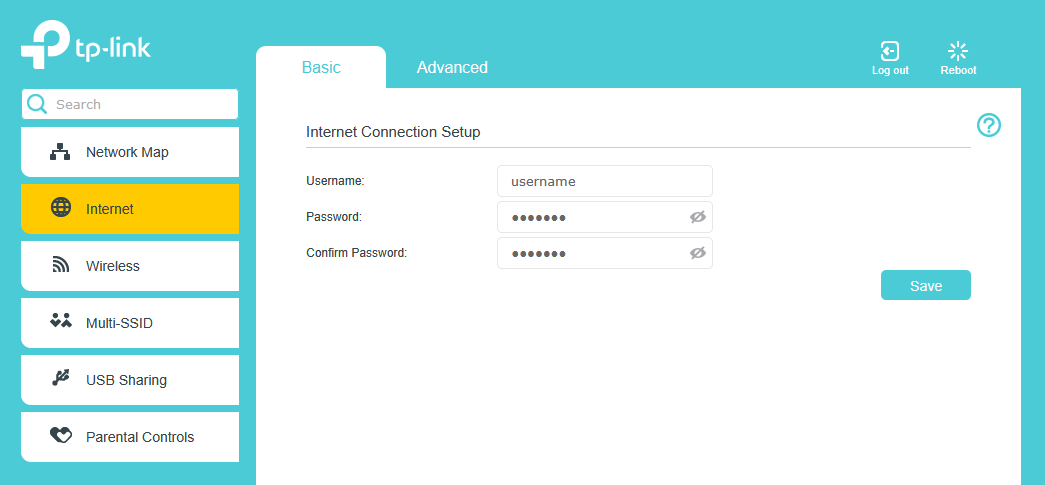
- Save your settings and wait 5-10 minutes for your modem to connect.
- You should now be online. If you can’t view a website or notice a red or unlit Internet light on your modem, call us on 13 22 58 for help.
We’re fully trained on iiNet modems, but please note that there may be limited support for your BYO modem.