Troubleshooting Wi-Fi for Dropouts
Select one of the links below to jump to a query:
If your Wi-Fi connection is having dropouts, it means that your Wi-Fi will lose connection intermittently while devices connected to your modem by Ethernet cable will stay connected. These steps will help you identify the issue.
- Turn off your Wi-Fi devices off for at least 60 seconds, then turn them back on again.
You can use a Restart option if your device has one. - Find your Wi-Fi modem and turn off its power outlet for at least 60 seconds.
- Turn the outlet back on and wait for your modem’s Internet light to come on, then see if your Wi-Fi drops out again.

- When your Wi-Fi drops out, make sure that laptop, phone or tablet is still connected to your Wi-Fi network. You may need to move closer to your modem because your device will automatically disconnect if the Wi-Fi is out of range.
If you need to connect a device to your Wi-Fi network again, you'll find the default WiFi name (SSID) and password on your modem's barcode sticker.
Do you have a custom Wi-Fi name or password? Our basic Wi-Fi settings guide for iiNet modems will help you change your Wi-Fi details. If your modem isn't from iiNet, you should be able to find help on the manufacturer's website.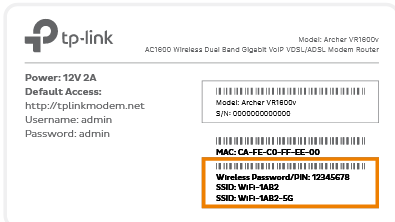
- If your Wi-Fi only drops out in certain parts of your home, check out our guide on improving Wi-Fi signals.
- Do you have multiple devices connected to your Wi-Fi? If some devices get Wi-Fi dropouts in the same location while others don't, the devices that gets dropouts may have a faulty wireless adapter.
Devices with a faulty wireless adapter may need to be repaired or replaced. If the device is a computer running Windows, a winsock reset may help. - Still can't connect to the Wi-Fi? If you have an iiNet modem, please call us on 13 22 58 and we'll help you out.
If you have a third-party modem, please check the manufacturer's website for support.
Known Wi-Fi issue for LG TVs
Some LG TV models experience Wi Fi connection issues when trying to connect to the iiNet Wi Fi Max or Vodafone Super Wi-Fi modems.
LG has confirmed this is due to a software compatibility issue and has released an update to resolve it.
Your LG TV may be affected if you notice one or more of the following:
- The TV fails to connect to Wi‑Fi.
- The Wi‑Fi network is visible, but connection fails or drops.
- The TV repeatedly prompts for Wi‑Fi setup.
These issues may occur even though other devices connect normally to the same modem without any problems.
If your TV can’t connect to Wi Fi, it may not be able to download the update automatically.
You can update your TV to the latest LG software using one of the methods below.
Option 1: Use a Mobile Phone Hotspot
- Enable Hotspot on your mobile phone.
- On your TV, open Settings > Network > Wi‑Fi Connection.
- Connect the TV to your mobile hotspot.
- Once connected, go to Settings > Support > Software Update.
- Download and install the latest available update.
- Restart the TV after the update is completed.
You can disable the mobile hotspot once the update is finished.
Option 2: Use an Ethernet (LAN) Cable
If your TV supports Ethernet and your modem is located nearby:
- Connect an Ethernet cable from the TV to a LAN port on your Super Wi‑Fi or Wi‑Fi Max modem.
- On your TV, open Settings > Network and confirm it shows a wired connection.
- Go to Settings > Support > Software Update.
- Download and install the latest software update.
- Restart the TV once installation is complete.
After updating, you can disconnect the Ethernet cable and reconnect the TV to Wi‑Fi.
Affected TVs
LG has confirmed that this issue impacts specific LG TV models.
OLED TV models
| G5 Series | M5 Series | B5 Series | C5 Series |
|---|---|---|---|
| OLED55G5 | OLED65M5 | OLED48B5 | OLED42C5 |
| OLED65G5 | OLED97M5 | OLED55B5 | OLED48C5 |
| OLED77G5 | OLED65B5 | OLED55C5 | |
| OLED83G5 | OLED77B5 | OLED65C5 | |
| OLED97G5 | OLED83B5 | OLED77C5 | |
| OLED83C5 |
LED TV models
| QNED93ASA Series | QNED86ASA Series |
|---|---|
| 55QNED93ASA | 50QNED86ASA |
| 65QNED93ASA | 55QNED86ASA |
| 75QNED93ASA | 65QNED86ASA |
| 85QNED93ASA | 75QNED86ASA |
| 86QNED86ASA | |
| 100QNED86ASA |
Need More Help?
If your LG TV:
- Cannot complete the update using the steps above, or
- Continues to experience Wi‑Fi issues after updating
Contact LG Support for model‑specific assistance or give us a call on 13 22 58 for further troubleshooting.