Update payment details in Toolbox
It’s easy to update your payment details in Toolbox. Your payment details will be used to auto-pay your iiNet invoice each month.
Select one of the links below to jump to a query:
Update your payment details
- Log in to Toolbox and hit Bills & Payments. If you're on a mobile device and you don't see this option, click the grey square with three lines to show it.
Never logged into Toolbox before? Check out An Introduction to Toolbox. - Select Update payment details. If you're on a mobile device and you don't see this option, click the grey bar labelled Billing & Payments actions to show it.
- You’ll see a summary of your current payment details. For security reasons, only a partial bank account or credit card number will be shown on screen.
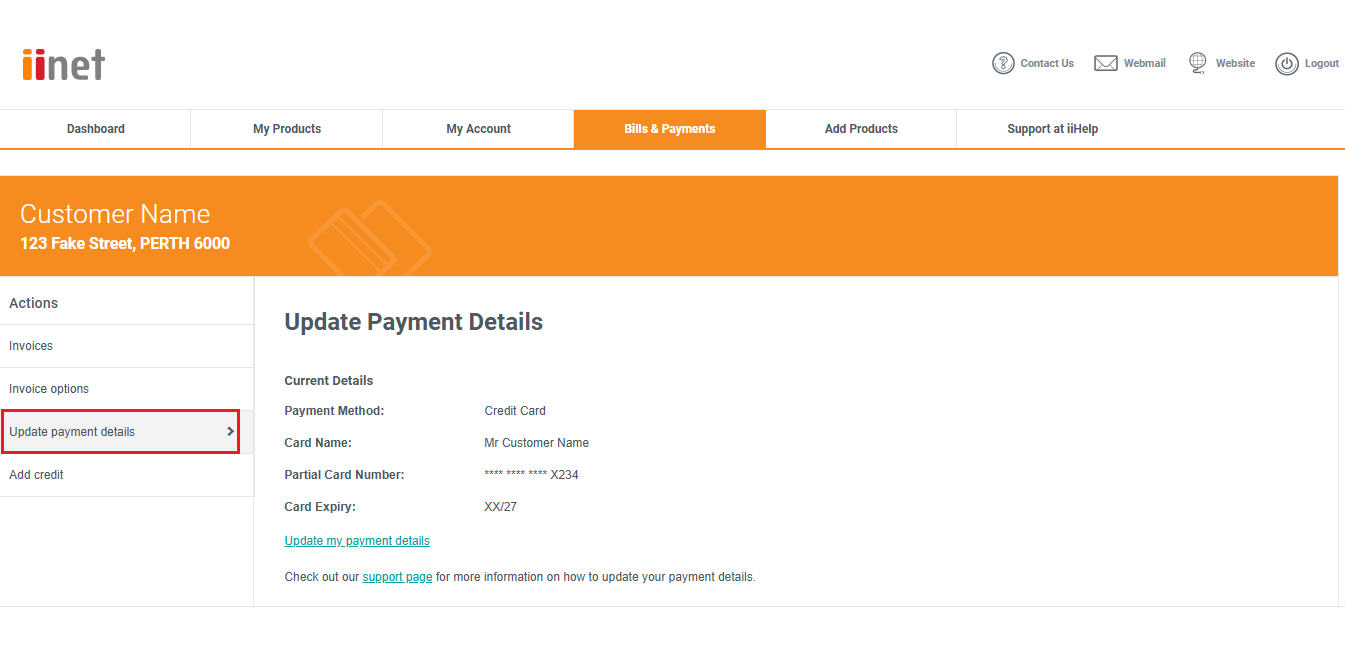
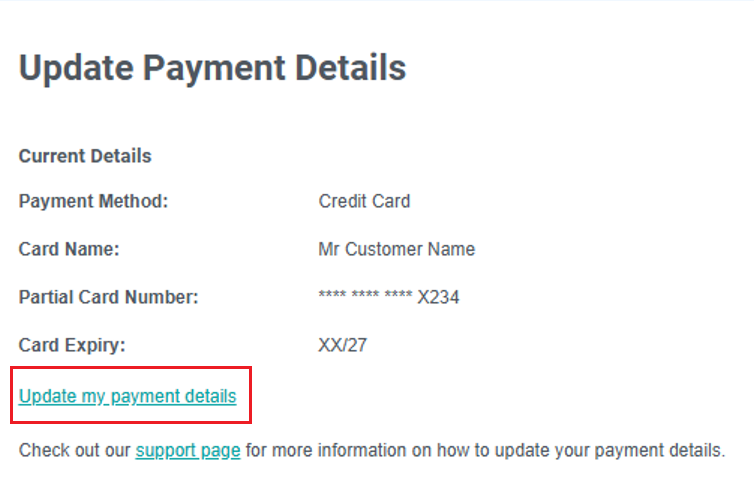
- To edit these details, click Update my payment details. You can then choose to fill out and save a set of credit card or bank account details.
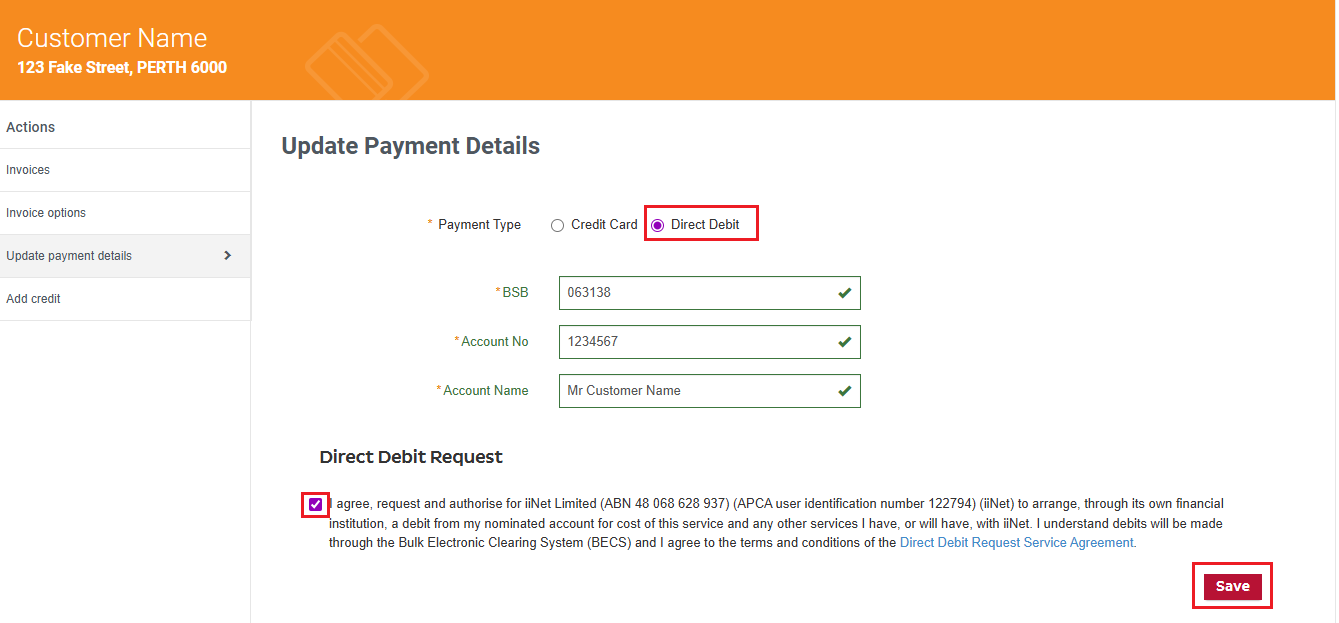
- Select either Credit Card or Direct Debit, then fill out the required details for your selected payment method:
- Credit Card (Credit or Debit cards) requires a Name on Card, Card Number, Expiration Date and Security Code.
- Direct Debit requires a BSB, Account number, and Account name.
- Click Save to finish. The details you save will become the default payment method for your iiNet account.
Can I use a gift card as my payment details?
Sorry, but your payment details must use an Authorised Deposit-taking Institution (ADI). Gift cards such as Visa Debit gift cards aren’t considered ADIs, so they can’t be used as your iiNet payment details.