How to link your accounts
If you have multiple iiNet accounts, you can link them together and manage them using the same login. Accounts are linked automatically if you order more iiNet services using your existing iiNet username.
Select one of the links below to jump to a query:
- How to link or unlink your iiNet accounts
- How services are invoiced for linked iiNet accounts
- How to manage linked iiNet accounts
- Dual Account Customer FAQ
How to link or unlink your iiNet accounts
To link or unlink your iiNet accounts, please call us on 13 22 58 and we’ll be happy to help.
Important:
- Only an authorised contact can link an account. The account holder for both account must be the same person - their name and date of birth must match.
- If you unlink your accounts, you may lose any bundling offers, invoices will no longer be consolidated, and you'll be required to log into each individual account to manage your services.
How services are invoiced for linked iiNet accounts
Your payment details and invoices will be combined for linked accounts, except prepaid services which will continue to be invoiced separately.
Important:
- You're responsible for paying for each service on your linked iiNet accounts. It's a good idea to check your payment details in Toolbox after linking accounts.
- The first time services are combined on the same invoice, you may see adjustments like partial monthly fees to align the services to the same billing period.
How to manage linked iiNet accounts
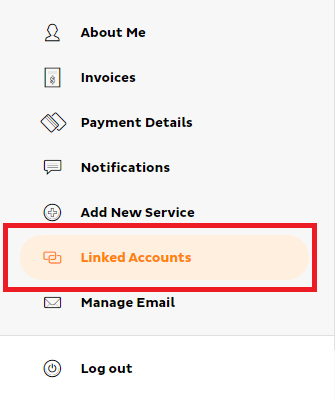
Your linked accounts can be seen in Toolbox by selecting Linked Accounts:
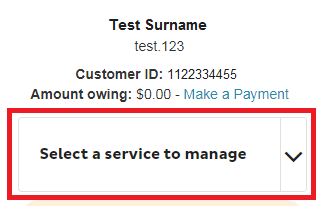
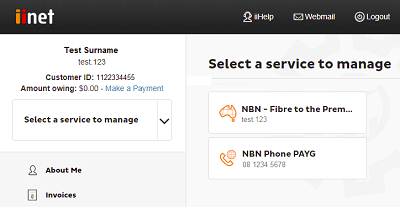
Once your accounts are linked, you can switch between your different services using the Select a service to manage drop-down:
Dual Account Customer FAQ
What is a dual account?
Some iiNet customers have services across two billing systems understand the differences between their two iiNet accounts and how they can manage their services. We call these customers "dual account" customers.
Currently, our new billing system is used for:
- Mobile SIM plans
- nbn services
- 4G Home Wireless Broadband services
- 5G Home Broadband services
- Ultra Broadband services
In some cases, existing customers may also have iiNet services which aren't yet available in the new billing system. That means that they'll have two accounts which need to continue indefinitely until we're able to get all of their services in the new billing system. We call this situation a "dual account".
Will I have two invoices as a dual account customer?
Yes. Each billing system will issue its own invoice for the services on each account. Don't worry, though - you won't be billed twice for the same service as one service can only exist in one billing system. You'll receive your invoices via email as usual and payment will be automatically debited from your nominated bank account or credit card in time for the due date.
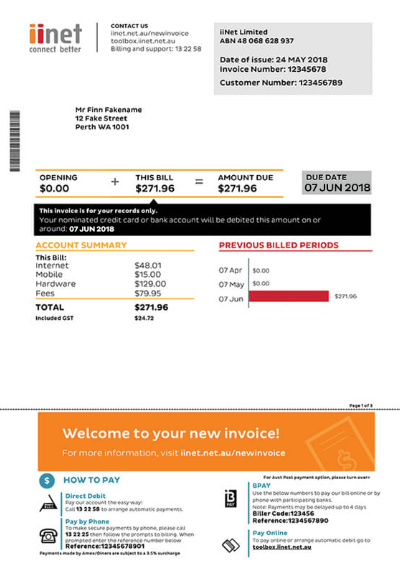
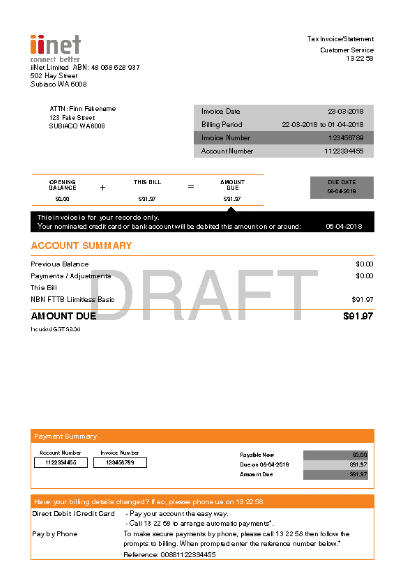
These invoices look different. At a glance, you can see that it's pretty easy to tell which is which. You can also take a look at the services which are listed on your invoice to confirm which is which.
|
|
|
|---|---|
 |
 |
How do I manage my services online in Toolbox?
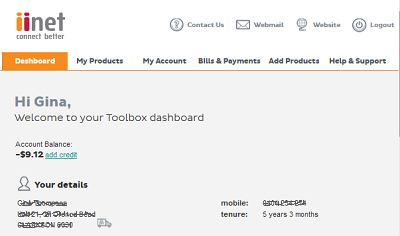
Just like dual account customers have two different invoices, there are two different versions of Toolbox to use to manage your account online; one for your services in our existing billing system, and one for your services in our new billing system.
You can log into either Toolbox from the same place, our main login page at https://toolbox3.iinet.net.au/. The trick to getting one Toolbox or the other is the credentials you use to log in.
If you've forgotten your password for either Toolbox, please use our password reset tool.
| Toolbox for existing billing system | Toolbox for new billing system |
|---|---|
|
|
|
 |
 |
How do I switch between iiHelp articles relevant to each billing system?
Whenever an iiHelp article has equivalent articles for each billing system, you'll see a banner like the example below. You can use this banner to make a selection so you'll be shown the right information.
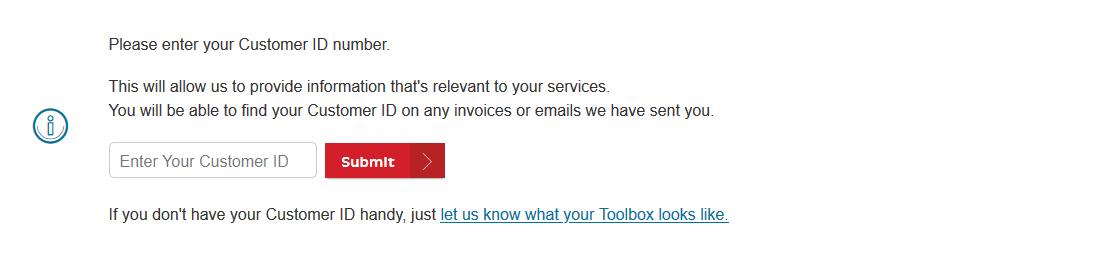
Simply click the link and choose what your invoice or Toolbox looks like and you'll be taken to the relevant advice in the article.
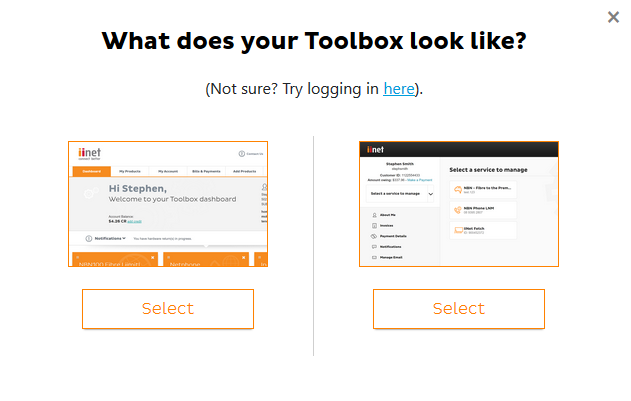
If you need to change your decision, simply scroll back to the top of the article and choose again.
