Update your contact details in Toolbox
You can update your contact details, add new contacts or remove existing contacts at any time in My Account. You can also change your contact preferences.
Important: If you're updating your address because you're moving home, please contact us ASAP so we can help you move your iiNet services. Check out our Moving Home page for everything you need to know.
Select one of the links below to jump to a query:
- How to update existing contact details
- How to add, edit or remove an additional contact
- How to update your contact preferences
How to update existing contact details
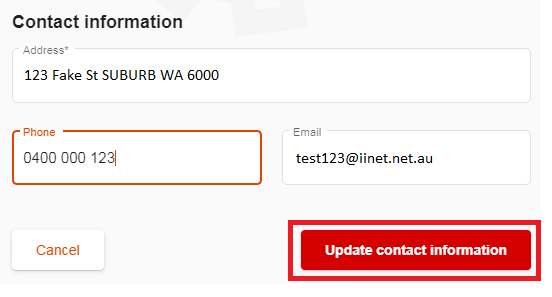
- Log in to Toolbox and select About Me, then Edit contact information.
Never logged into Toolbox before? Check out An Introduction to Toolbox.

- Update your Address, Phone, or Email as needed and hit Update contact information to save.
You won't be able to save if Phone number is left blank.
How to add, edit or remove an additional contact
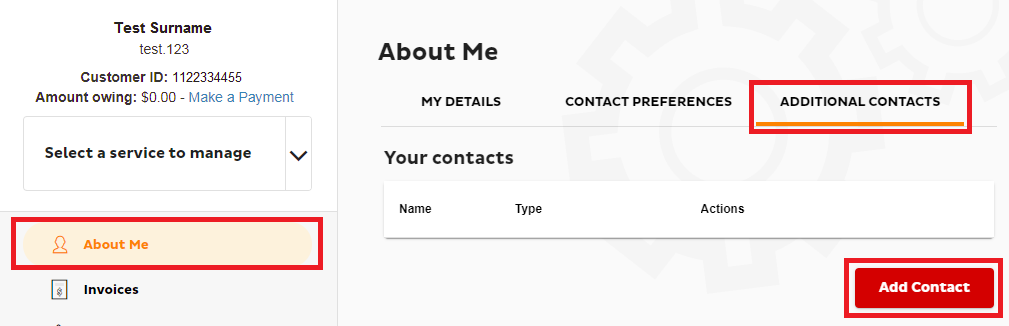
- Log in to Toolbox and hit About Me, then go to the ADDITIONAL CONTACTS tab.
- To add a contact, hit Add Contact.
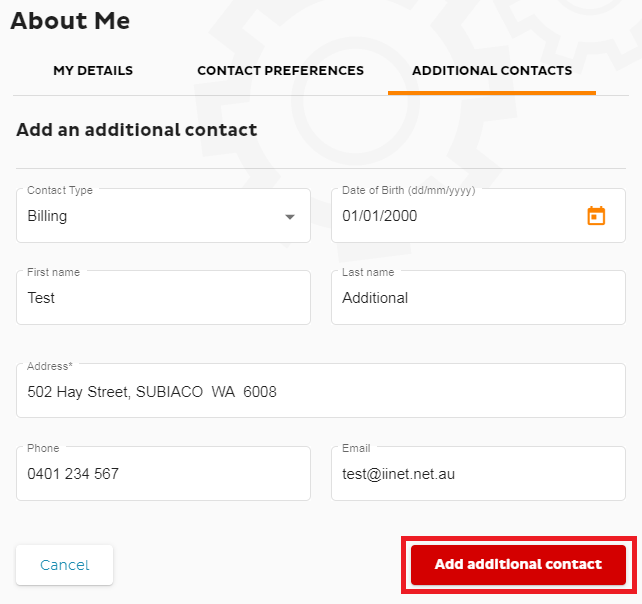
- Select the Contact Type:
- Billing contact: An account holder with the authority to add/change/relocate/cancel/troubleshoot and lodge service faults for any non-telephony services on the account, add/remove contacts, access invoices and other billing information, change payment details, request to link accounts that have the same account holder (full name and date of birth must match).
- Phone contact: Also known as a “legal lessee”, they have the authority to change/relocate/cancel/troubleshoot and lodge service faults for any telephony services on the account. If the Phone and Billing contacts are two different people, authorisation from both is required to add/change a telephony service in a way that will increase the plan fee or incur a one-off charge.
- Technical contact: Has the authority to troubleshoot services on the account with our Support team. They can also lodge a service fault for a non-telephony service, provided the Billing contact has accepted responsibility for a possible Incorrect Callout Fee.
- User contact: Only has the authority to troubleshoot services on the account with our Support team.
- Fill out the rest of the form with the Date of Birth, First name, Last name, Address, Phone and Email, then hit Add additional contact to save.
You won't be able to save if Address is left blank.
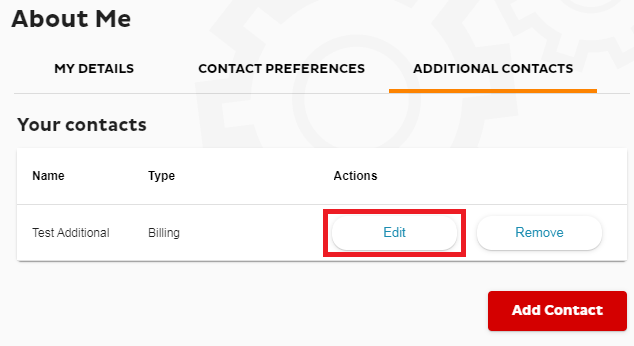
- Once you have additional contacts, you can hit Edit to update their details at any time on the ADDITIONAL CONTACTS tab.
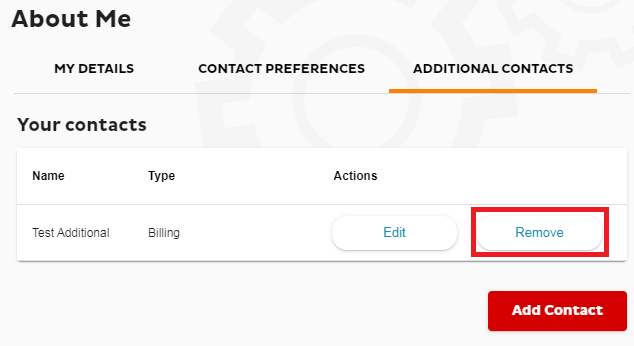
- To delete an additional contact, just hit Remove, then Delete Contact to confirm your decision. A Delete Contact button is also available on the Edit page.
How to update your contact preferences
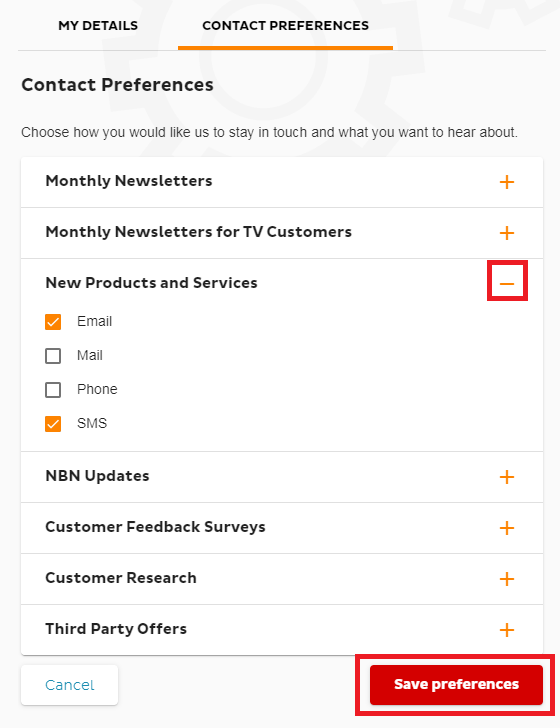
- Log in to Toolbox and select About Me, then select the CONTACT PREFERENCES tab.
Never logged into Toolbox before? Check out An Introduction to Toolbox. - You’ll see a list of the different types of material you may be contacted with, such as feedback surveys. Click the + (plus) icon to expand a section.
Once a section is expanded, the + (plus) icon will change to a - (minus) icon, which you can use to minimise the section again.
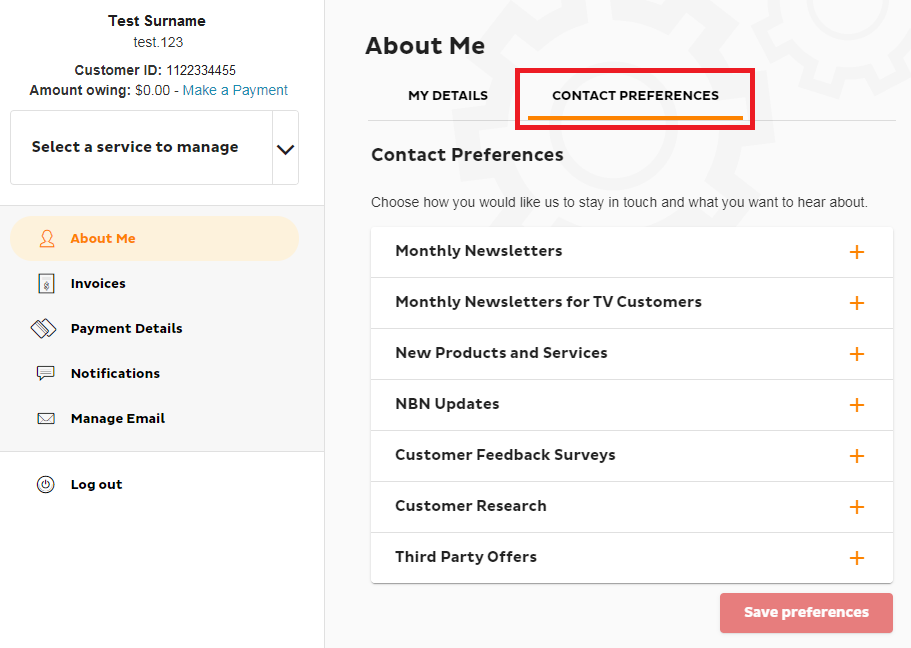
- Each section will list available contact methods for that material, e.g. email, SMS, mail or phone. Simply check or uncheck the boxes to adjust your preferences, and click Save preferences to finish.